语言标签:中英双语
上个月,我把主力编辑器从 VS Code 换成了 Cursor IDE。起因很简单:身边几个独立开发者都在用它写前端和脚本,反馈出奇一致——”回不去了”。
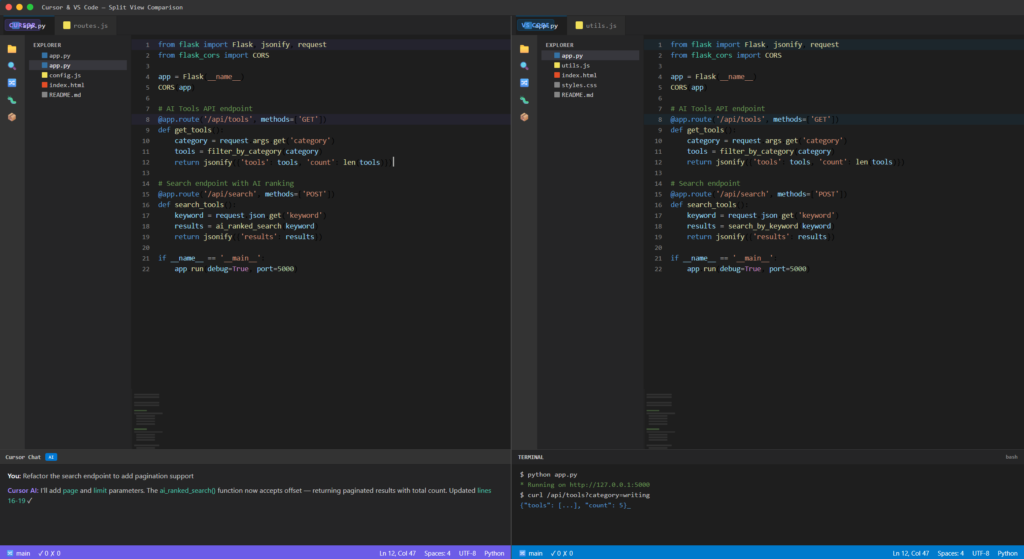
为什么换到 Cursor IDE?
说实话,VS Code + Copilot 我用了两年,体验不差。但最近半年 Copilot 的补全越来越”保守”——经常只补一行,或者给一个明显不对的建议要我手动改。我觉得问题不在 Copilot 本身,而是它缺乏项目级上下文。它只看当前文件和最近几个文件,看不到我的整体架构意图。
Cursor IDE 的核心卖点就一句话:AI 原生 IDE。不是在 VS Code 上加一个插件,而是把 AI 深度嵌入编辑器的每个环节——从代码补全到重构,从搜索到调试,AI 都能参与。
迁移到 Cursor:0 成本,5 分钟搞定
Cursor IDE 的界面和 VS Code 几乎一样,迁移成本极低。具体步骤:
- 下载 Cursor,打开后自动识别你的 VS Code 设置(主题、快捷键、扩展)
- 所有 VS Code 扩展都兼容,不需要重新安装
- 项目文件夹直接打开,零配置
唯一需要适应的是两个新快捷键:
- Cmd+K:选中代码后,用自然语言让它修改、重构、解释
- Cmd+L:打开 Chat 面板,连续对话上下文,让它基于整个代码库回答
第一天我就用 Cursor IDE 的 Cmd+K 把一个 50 行的 Python 函数重写成了 15 行,只输了一句”简化这个函数,去掉不必要的中间变量”。
30 天实测 Cursor:3 个核心场景
场景 1:用 Cursor IDE 生成样板代码和前端组件
以前写一个 React 表单组件,需要手动写 state、handler、validation、styling,至少 20 分钟。现在用 Cursor IDE 的 Cmd+K 描述需求:”写一个带邮箱验证的登录表单组件,用 Tailwind 样式”,Cursor IDE 5 秒出完整代码,我再微调 2 分钟。
效率提升:约 40%(前端和 API 调用场景)
场景 2:用 Cursor 理解陌生代码库
接手别人的项目时,最痛苦的是搞清调用链路。以前我会在各文件间跳转搜索,现在直接用 Cursor IDE 的 Cmd+L 问:”这个函数的调用链是什么?哪些地方依赖它?”Cursor IDE 会扫描整个项目,给出清晰的调用图。
效率提升:约 50%(读代码和理解架构)
场景 3:Cursor 的 Debug 和错误修复
报错信息贴进 Cursor IDE 的 Chat 面板,它不仅给修复建议,还会解释为什么出错、涉及哪些文件。比 Copilot 的”这里加个 try-catch”强太多了。
效率提升:约 30%(调试和错误修复)
30 天后的 Cursor IDE 真实感受
| 维度 | 评分 | 说明 |
|---|---|---|
| 写代码速度 | 提升 30% | 前端和脚本场景最明显 |
| 上下文理解 | 比 Copilot 强 | 能读取整个项目文件 |
| 学习成本 | 极低 | VS Code 用户零门槛 |
| 复杂业务逻辑 | 需要自己判断 | AI 建议有时”看着对但有坑” |
使用 Cursor IDE 需要注意的 3 个坑
- 不要盲信 Cursor IDE 生成的代码:给的方案有时逻辑正确但性能差,尤其是数据库查询和缓存策略
- Cursor IDE Chat 面板上下文有长度限制:超长对话时,AI 会遗忘早期内容,建议分批次提问
- Cursor IDE 免费版有请求次数限制:重度使用建议升级 Pro 版($20/月),性价比很高
Cursor IDE vs VS Code + Copilot:结论
如果你是 VS Code 用户,迁移到 Cursor IDE 几乎零成本。核心差异在于 AI 的参与深度——Copilot 是”副驾驶”,Cursor IDE 是”正驾驶”。AI 不只是补全代码,而是真正理解你的项目结构。
我的建议:下载 Cursor IDE 免费版试一周。你会体验到什么叫”IDE 里住了一个高级工程师”。
💡 试试 Cursor IDE:官网链接 | 更多 AI IDE 工具对比,看我们的 AI 工具对比器
Last month, I switched my main editor from VS Code to Cursor. The reason was simple: several indie developers I know were using it for frontend and scripting, and they all said the same thiLast month, I switched my main editor from VS Code to Cursor. The reason was simple: several indie developers I know were using it for frontend and scripting, and they all said the same thing — “I can’t go back.”
Why Did I Switch to Cursor IDE?
Honestly, I used VS Code + Copilot for two years, and the experience wasn’t bad. But over the past six months, Copilot’s completions have become increasingly “conservative” — it often only completes one line, or gives a clearly wrong suggestion that I have to manually fix. I think the problem isn’t with Copilot itself, but rather its lack of project-level context. It only looks at the current file and a few recent files; it can’t see my overall architectural intent.
Cursor IDE’s core selling point boils down to one sentence: an AI-native IDE. It’s not VS Code with a plugin bolted on — it deeply embeds AI into every环节 of the editor, from code completion to refactoring, from search to debugging — AI participates in all of it.
Migrating to Cursor IDE: Zero Cost, Done in 5 Minutes
Cursor IDE’s interface is nearly identical to VS Code, so the migration cost is extremely low. Here are the specific steps:
- Download Cursor IDE — upon opening, it automatically recognizes your VS Code settings (theme, keybindings, extensions)
- All VS Code extensions are compatible; no need to reinstall anything
- Project folders open directly with zero configuration
The only thing you need to adapt to is two new shortcuts:
- Cmd+K: Select code, then use natural language to modify, refactor, or explain it
- Cmd+L: Open the Chat panel for continuous contextual conversation — it answers based on your entire codebase
On my very first day, I used Cursor IDE’s Cmd+K to rewrite a 50-line Python function into just 15 lines — I only typed one sentence: “Simplify this function, remove unnecessary intermediate variables.”
30-Day Real Test of Cursor IDE: 3 Core Scenarios
Scenario 1: Generating Boilerplate Code and Frontend Components with Cursor IDE
Previously, writing a React form component required manually creating state, handlers, validation, and styling — at least 20 minutes. Now I describe the requirement with Cursor IDE’s Cmd+K: “Write a login form component with email validation, styled with Tailwind,” and Cursor IDE generates complete code in 5 seconds. I then fine-tune it for about 2 minutes.
Efficiency improvement: ~40% (frontend and API call scenarios)
Scenario 2: Understanding unfamiliar codebases with Cursor IDE
When taking over someone else’s project, the hardest part is figuring out the call chain. Before, I’d jump between files searching. Now I just ask Cursor IDE’s Cmd+L: “What’s the call chain for this function? Where does it get called?” Cursor IDE scans the entire project and gives me a clear call graph.
Efficiency improvement: ~50% (reading code and understanding architecture)
Scenario 3: Debugging and error fixing with Cursor IDE
Paste an error message into Cursor IDE’s Chat panel, and it not only gives fix suggestions but also explains why the error occurred and which files are involved. This is way better than Copilot’s “just add a try-catch here.”
Efficiency improvement: ~30% (debugging and error fixing)
My Honest Take After 30 Days with Cursor IDE
| Dimension | Rating | Notes |
|---|---|---|
| Coding speed | 30% faster | Most noticeable in frontend and scripting scenarios |
| Context understanding | Better than Copilot | Can read the entire project’s files |
| Learning curve | Extremely low | Zero barrier for VS Code users |
| Complex business logic | Needs your own judgment | AI suggestions sometimes “look right but have pitfalls” |
3 Pitfalls to Watch Out for When Using Cursor IDE
- Don’t blindly trust Cursor IDE-generated code: The solutions it offers are sometimes logically correct but poor in performance, especially regarding database queries and caching strategies
- Cursor IDE’s Chat panel has a context length limit: In long conversations, AI will forget earlier content — it’s better to ask questions in batches
- Cursor IDE’s free tier has request limits: Heavy users should consider upgrading to Pro ($20/month) — excellent value for money
Cursor IDE vs VS Code + Copilot: The Final Verdict
If you’re a VS Code user, migrating to Cursor IDE is virtually zero cost. The core difference lies in the depth of AI involvement — Copilot is the “co-pilot,” while Cursor IDE is the “pilot.” AI doesn’t just complete code; it truly understands your project structure.
My recommendation: Download the free version of Cursor IDE and try it for a week. You’ll experience what it feels like when “a senior engineer lives inside your IDE.”
💡 Try Cursor IDE: Official website link | For more AI IDE tool comparisons, check out our AI Tool Comparison ToolComparator